

Local SEO used to revolve around three main players: Google, Apple, and Bing. As of November 10, 2026, that playbook officially expanded. With the beta launch of Businesses in ChatGPT, you can now claim your profile, update your business information, and see how you appear in ChatGPT's AI search results.
Claiming a listing involves two steps: verifying your business ownership and confirming your personal identity. In this guide, we cover what to gather beforehand, how both verification paths work, and the beta limitations you should expect along the way.
According to OpenAI, 1.2 billion people turn to ChatGPT each week, asking the exact same local questions they used to type into traditional search engines: Who can fix a water heater today? Which dentist takes new patients? Where’s a good dinner spot near my hotel? ChatGPT answers those prompts by recommending real local businesses, regardless of whether you’ve claimed your profile.
Until now, owners were left guessing what ChatGPT was saying about their business, with no way to fix outdated or inaccurate details. With these new tools and insights, you can finally directly see how your business shows up and take control of the information ChatGPT shares.
Business Hub provides insight and control for how a business shows up in ChatGPT's search. Once you are claimed and verified, it shows aggregated activity for the past 28 days:
To claim your listing, OpenAI requires two quick verification steps: one to confirm your personal identity and another to prove business ownership. Having your paperwork and account access ready ahead of time will help you navigate both checks without getting stuck mid-process.
So before you start, you should gather the following information:

3. If you business already exsists, you can begin the claiming process
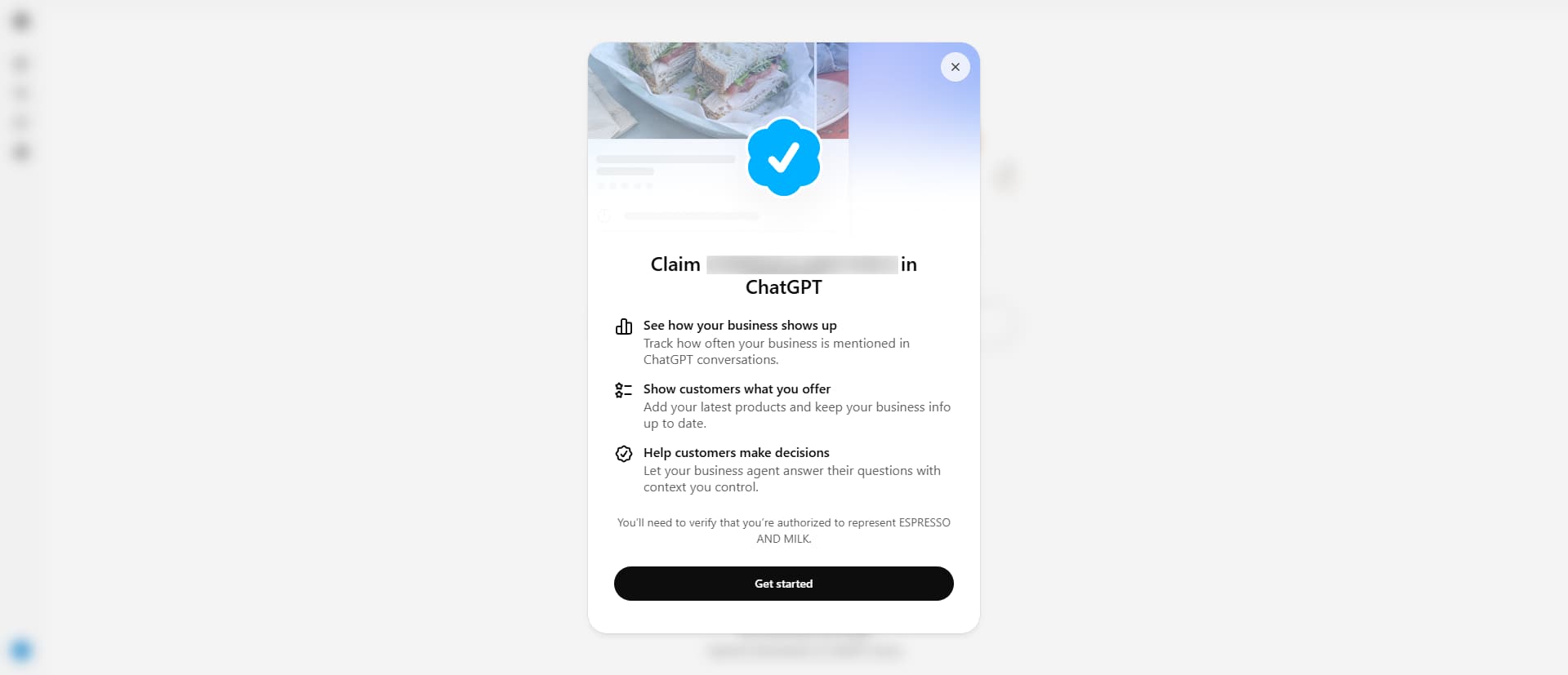
OpenAI also offers a variety of methods to verify ownership of a business such as a business phone number, email, web domain, or Shopify account. The following steps illustrate the business phone and web domain verification workflows.
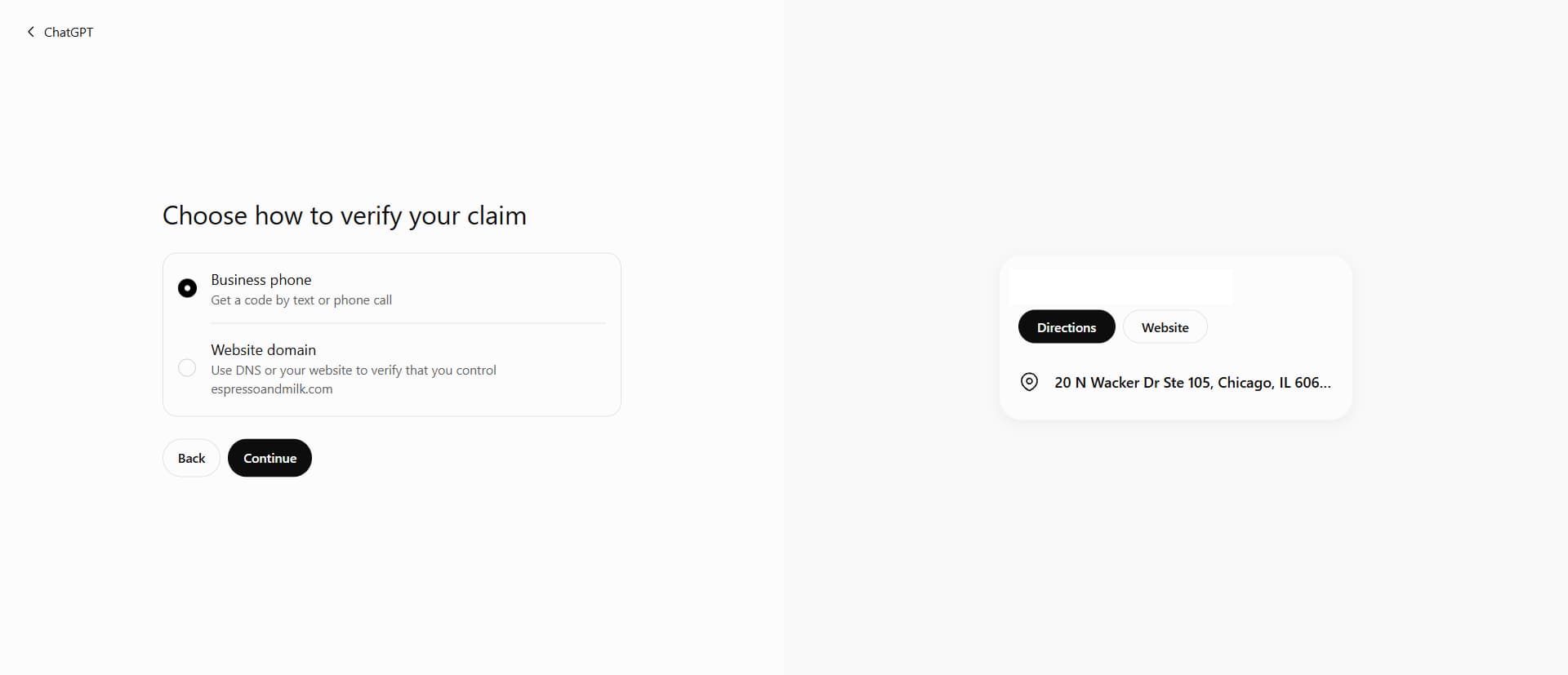
Option 1: Business phone
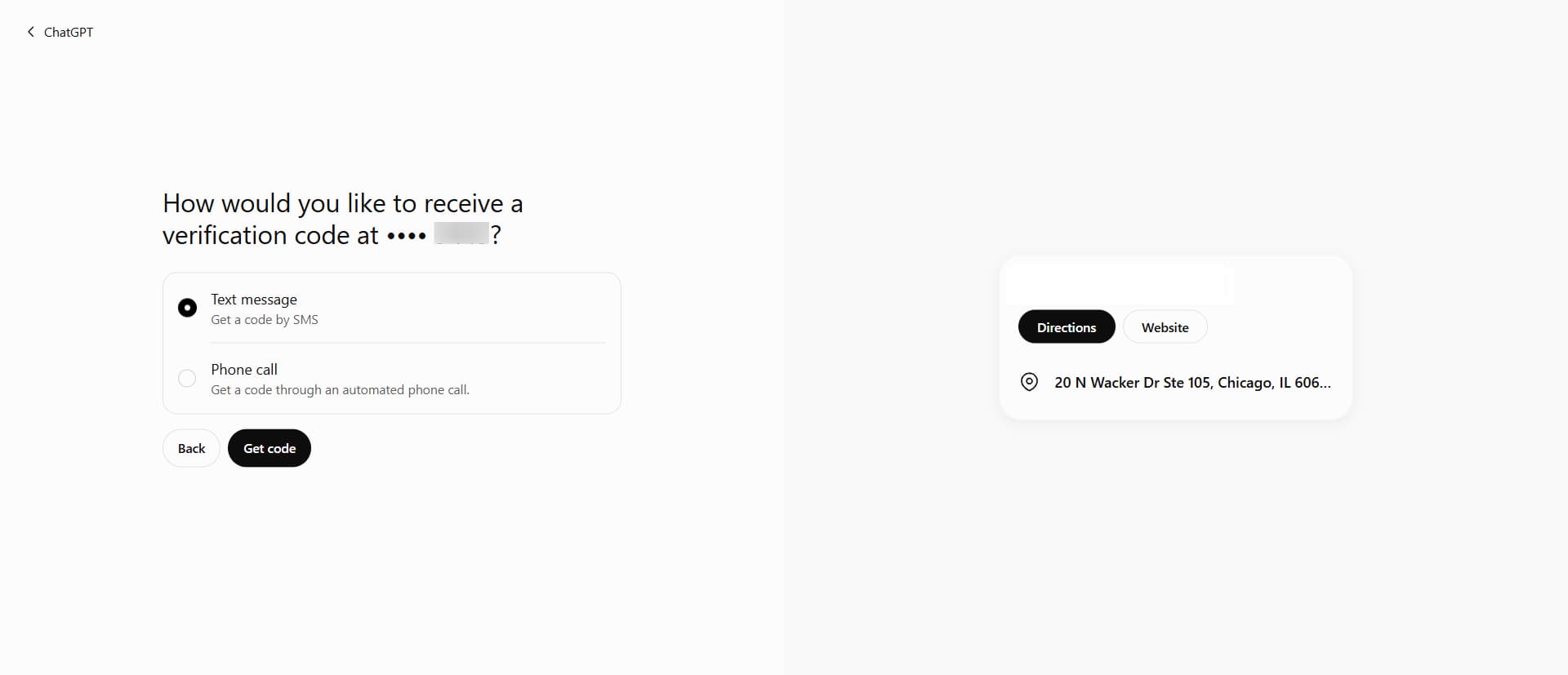
It is worth noting that the number you use may become the registered owner of the brand. For that reason, a general or authorized business line is a better choice than a personal number.
Option 2: Web domain
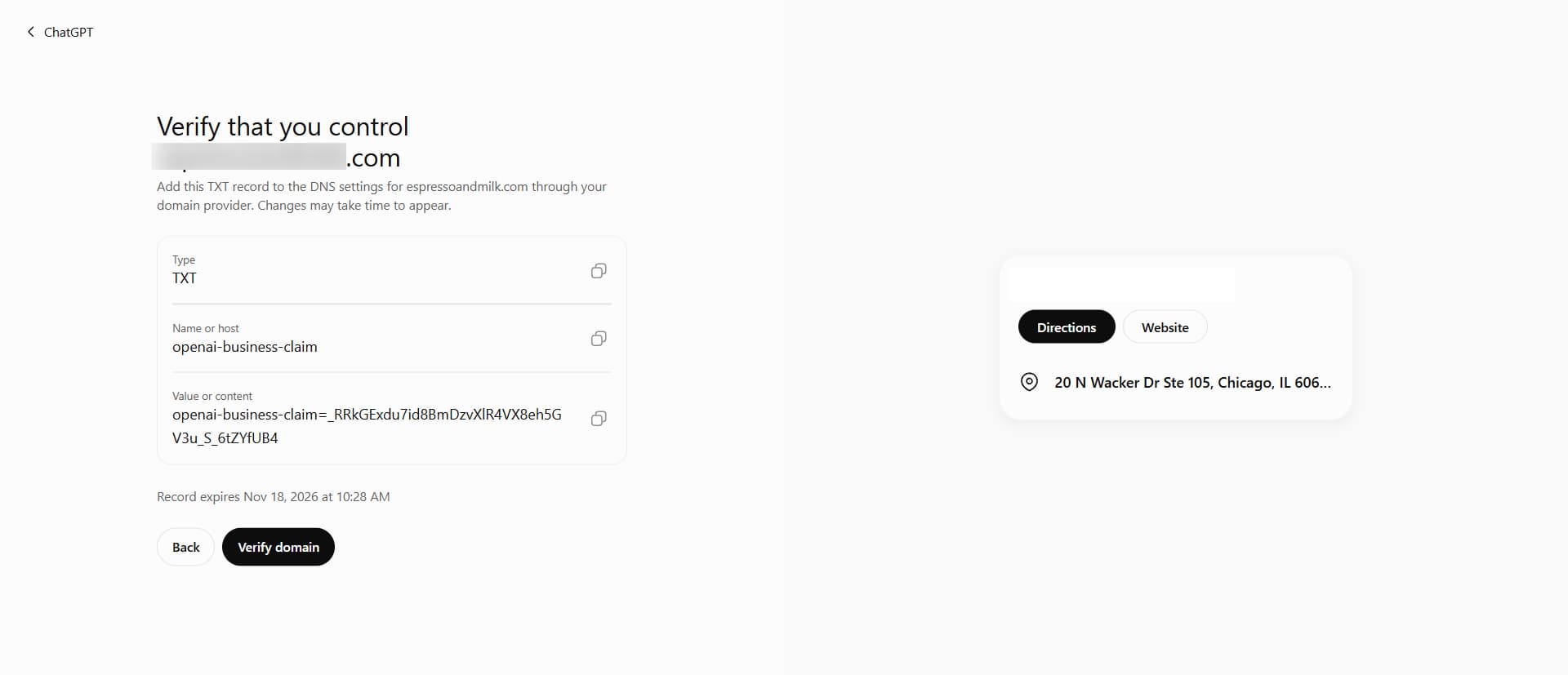
While OpenAI hasn’t stated an official preference between phone and domain verification, we recommend verifying through your website’s DNS whenever possible. Because the platform is still in beta, the long-term impact of each method isn't fully confirmed. However, adding a TXT record directly to your domain creates a clear technical link between your listing and your website, reinforcing your site as ChatGPT’s primary source of truth.
Completing your ownership check doesn’t immediately finalize your claim. Next, OpenAI reviews your submission and sends a decision to the email address tied to your ChatGPT account. OpenAI hasn't published an official turnaround time for this step, so watch your inbox closely, and hold off on starting identity verification until that approval arrives.
Once your claim is approved, you must complete identity verification through Persona, a third-party service OpenAI uses to confirm a real person is behind the claim. This is where your government-issued ID is necesary.
Identity verification should not be skipped. Without Persona approval, you can't publish changes, view insights, or create an eligible Business Agent. In practice, claiming gets you in the door, but Persona is what unlocks anything useful.
OpenAI states that Persona handles verification and deletes uploaded IDs or selfies within 7 days after verification, while OpenAI receives only your date of birth or age prediction rather than your ID or selfie.
Once your business claim and Persona verification are approved, open your profile in Business Hub and update the following fields for accuracy:
Make sure everything follows the Businesses in ChatGPT policy.
Centralized management across a parent company's brands and locations is not currently available. Each distinct brand is managed separately by location, and claiming your main brand does not automatically claim all of its associated locations.
Franchises and multi-brand portfolios often operate as one connected organization, but Business Hub does not yet support that structure. Location-level access also needs attention. For brands going through a managed claim process, individual location profiles stay locked by default, and OpenAI points those businesses to their OpenAI contact for guidance.
Additionally, the published setup guidance does not document a public API for Business Hub profile management. The practical implication? Do not build your rollout around the assumption that your existing listings software can connect and push updates across your network.
Claiming a profile does not guarantee full control over ChatGPT's recommendation choice or ranking. For now, Business Hub is a great place to test how your information shows, learn how searchers are finding you, and establish ownership of your information. Claiming a business provides a framework grounded in establishing accurate information and clear ownership, giving you and your team the insight to iterate as the platform evolves.


