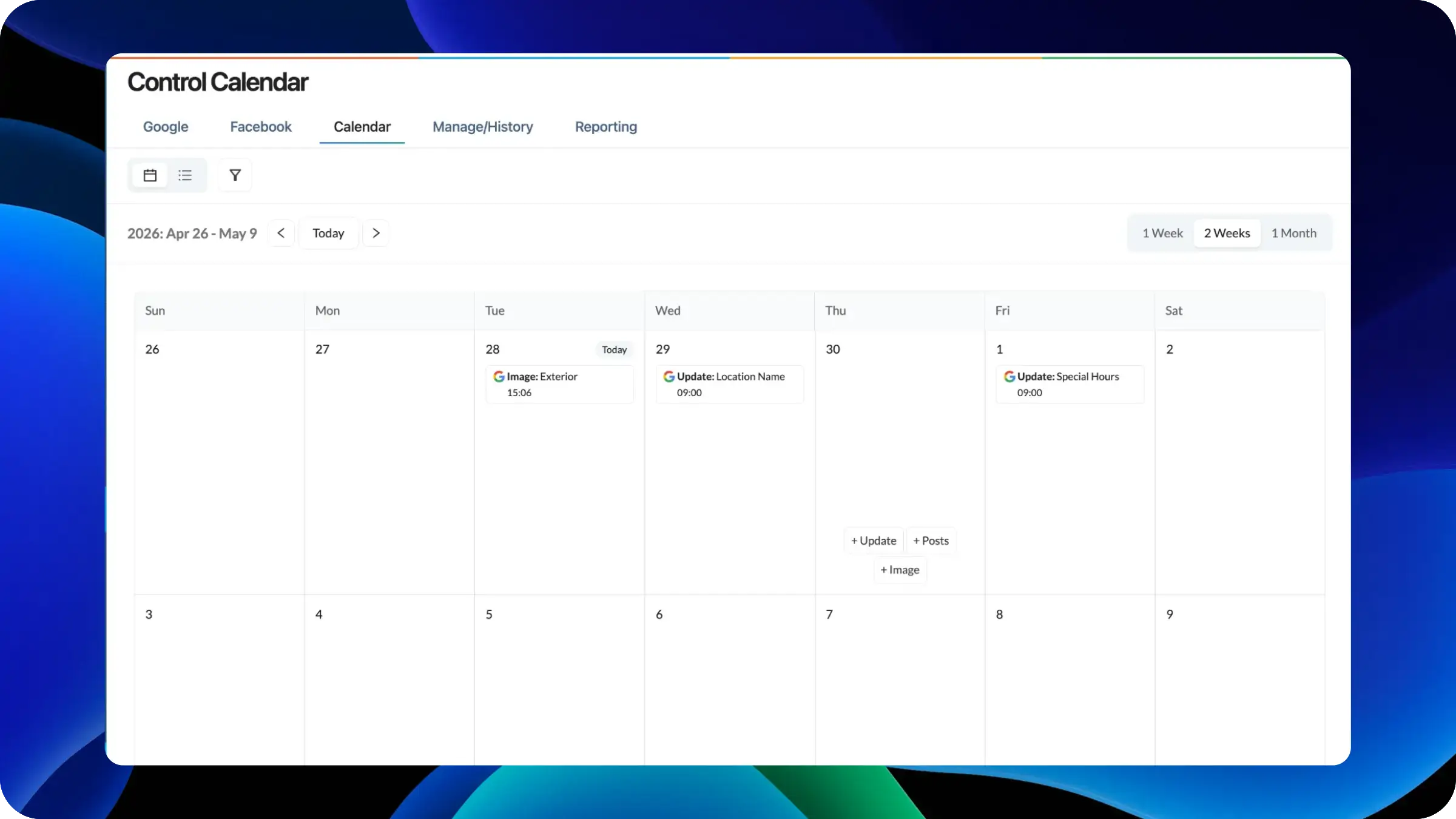
We're introducing Calendar View, a new visual interface for planning, scheduling, and managing content across your locations. Posts, updates, images, and bulk operations can now be created, viewed, and managed from a unified calendar, giving teams a clear picture of what's published, what's scheduled, and what's coming next across every location in their portfolio.
Managing content at scale for multi-location businesses has always been a list-driven process. Teams schedule posts, upload images, and push updates, but understanding the broader content picture across hundreds or thousands of locations typically means scrolling through tables, filtering by date, and mentally piecing together a timeline. This makes it difficult to spot gaps in coverage, avoid scheduling conflicts, and coordinate campaigns across regions or brands.
For teams running ongoing local content strategies (weekly promotional posts, seasonal image refreshes, holiday hours updates) the absence of a time-based view creates real operational blind spots. Content managers can't easily see that a region has nothing scheduled next week, or that two campaigns are overlapping on the same day. The result is inconsistent local presence and reactive planning instead of strategic scheduling.
Calendar View adds a time-based visual layer to every content workflow in LocalClarity, replacing guesswork with at-a-glance clarity. (Initially, it is accessible via the Post left-hand navigation but will soon have persistent access).
Unified Content Calendar
All content types (posts, updates, images, and bulk operations) appear on a single calendar. Each entry is visible on the date it's scheduled or was published, giving teams a complete view of their content activity without switching between different sections of the platform. The calendar supports one-week, two-week, and month views, so teams can zoom in on immediate execution or zoom out for campaign-level planning.
Create Directly from the Calendar
Clicking any date opens quick-create options for every supported content type: Quick posts, standard Posts, Updates, Bulk operations, and Image uploads. This means content can be planned and created in context. Teams see what's already on the calendar for that day and week before adding anything new, reducing duplication and scheduling conflicts.
List and Calendar Toggle
A toggle between calendar and list views lets teams work in whichever format suits their current task. Use the calendar for planning and visual scheduling, switch to the list for detailed filtering, bulk actions, and status tracking. Both views stay synchronized, so changes in one are immediately reflected in the other.
Filtering Across Locations and Content Types
The built-in filter allows teams to narrow the calendar by location group, region, content type, or publishing status. This is especially valuable for enterprise accounts managing diverse portfolios. A regional manager can filter to see only their locations, while a content lead can view all scheduled posts across the entire organization.
Calendar View launches today for posts, listing edits and image uploads. We're also working on drag-and-drop rescheduling and recurring content templates that will let teams set up repeating post schedules directly from the calendar.


