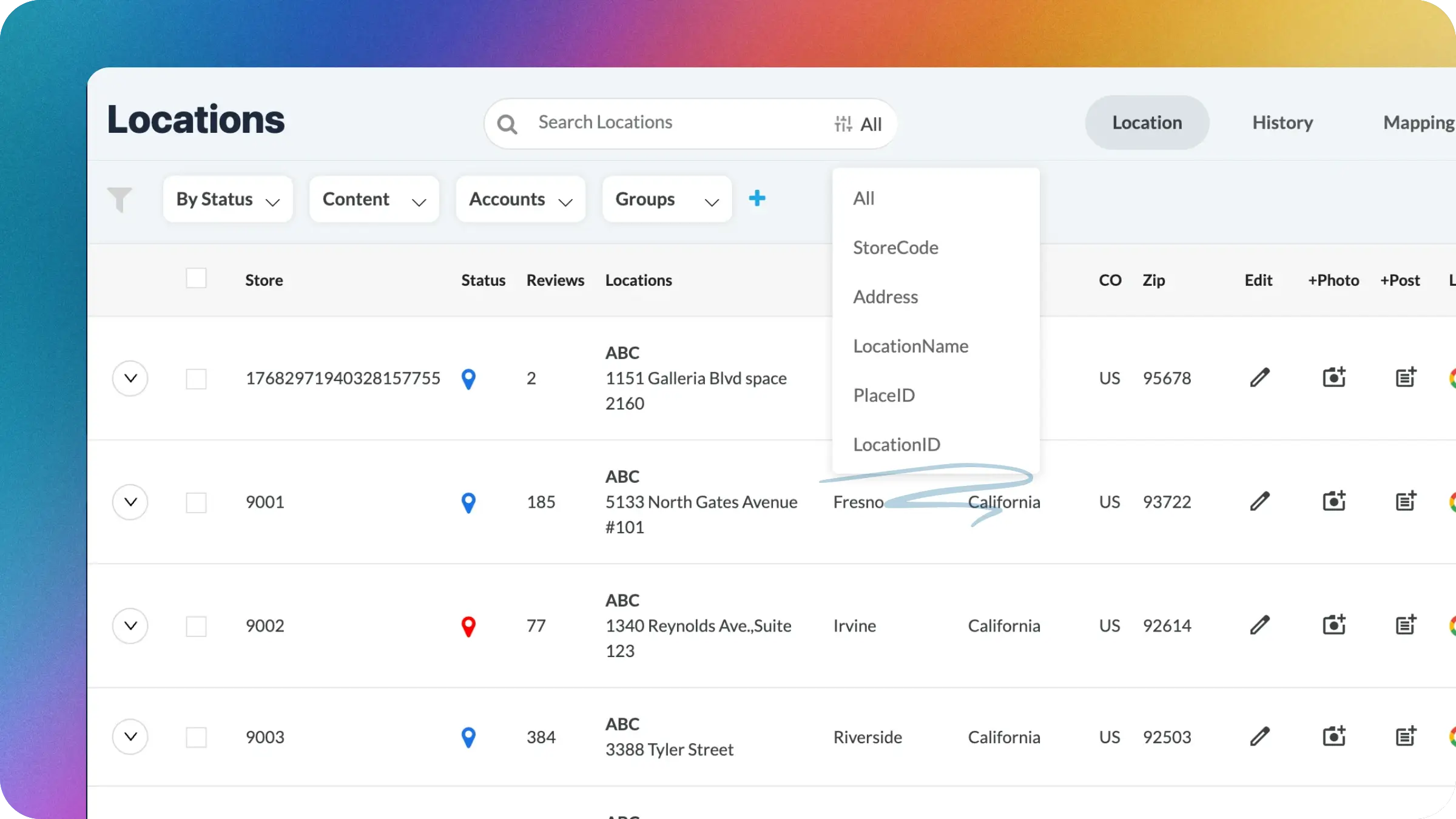
The Location Management module now provides comprehensive filtering by applying selected parameters allowing smoother, more efficient location searches. User can now get to relevant listings with greater ease.
The universal search box in the Location Management section makes it easy to search for your listings by store code, location name, address, and or postal code all in one step. We've expanded this convenience to Google listing details with filter updates to other sources slated for the future.
Building out the search filters in this module is crucial to differentiate, as searching by only those parameters can present challenges for brands with thousands of locations and tens of thousands of listings when data points overlap (e.g., when the Store Code of 101 also appears in a dozen addresses).
This release helps to support a number of very large clients and users with many locations looking to quickly parse through and locate specific Google listings. Having a filter that cuts out non-relevant results is invaluable at scale.
In the locations module, when clicking into the right-hand side of the search bar it shows a dropdown of selectable filters for store code, address, and location name. These are convenient custom group and listing detail filters to apply and utilize when looking for a specific location.
This filtering can present a challenge, however, when searching through dozens of Google listings that share similar store codes, addresses, or other listing details. Thus, we have built additional filtering for the Locations module Google tab.
Once in the Google Locations view search bar, you’ll see several search filters available for store code, address, location name, as well as placeID and locationID. These last two filters are Google specific and their values must be searched exactly to return their matching result. Other filters will return results that contain the search term(s) used.
In order to perform a filtered location search, you’ll first want to click into the search bar and select the specific filter you wish to apply. As an example, if you wanted to search for a store with the code “481”, you would first select the Store Code filter from the dropdown, then type in your query, and press enter.
This search will return all listing records that contain that query in that field (e.g. store code 1481) . Again, this function applies to all search filters except PlaceID and LocationID.
Below are each of the available filters and how their search can be expected to function:
StoreCode: returns listings that contain your searched value in the Store Code field
Address: returns listings that contain your searched value in any part of the address field(s)
LocationName: returns listings that contain the searched value in the LocationName field
PlaceID: returns listings which have an exact match to your searched PlaceID value
LocationID: returns listings which have an exact match to yoursearched LocationID value
Searching assisted by specific filtered parameters ensures that you quickly find exactly the listing details you are looking for saving time and effort for other business tasks. To aid this even further, we will soon be integrating search filters for Apple listing-specific details as well.


