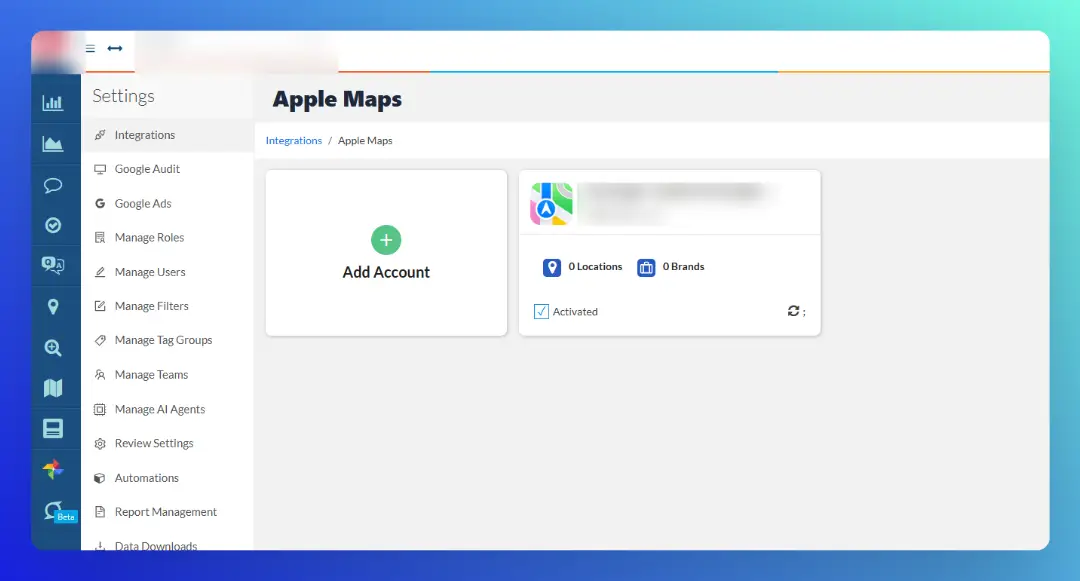
Step-by-step instructions on how to connect your Apple Business Account to the LocalClarity platform.
First Steps
Before you can connect your Apple Business to LocalClarity, you must have an existing profile within LocalClarity. If you already have a profile within the platform, you may begin connecting your integrated sources. If you do not have a profile within LocalClarity, you should begin this process by creating one https://app.localclarity.com/#/signup.
Initiate the Connection
Under the Settings module in your LocalClarity profile, navigate to the Integrations tab. Here you will see options for both Integrated and Indexed reviews sources. Under Integrated sources, you’ll want to select Apple Business. This will then prompt you with the “Add Account” button.
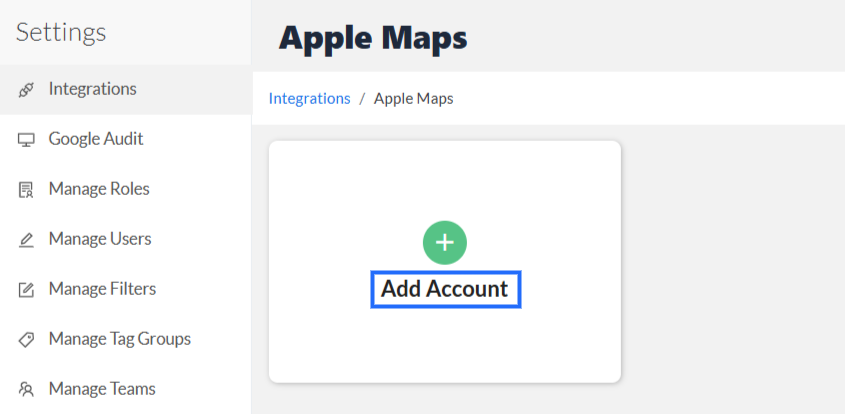
Once you select “Add”, you will be taken to a new window to login to your ABC account.
.png)
Next, you’ll be asked to either log-in with your Apple Account or to Create an Apple Account to use going forward.
Select An Email Address
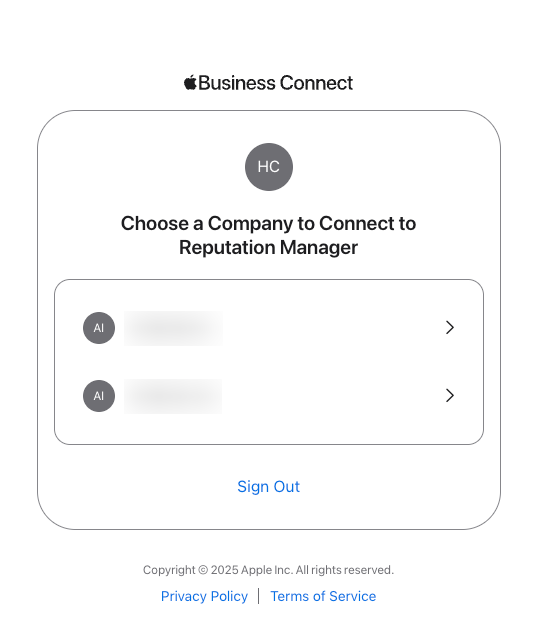
If you have multiple Apple Accounts and have already logged in, you’ll be taken to a window where you can select the email address you wish to use to connect.
Verify your Account
After creating the initial connection to Apple, you’ll need proceed with Apple’s verification process necessary for connecting to a third-party partner such as LocalClarity. At this point, if you have not already, you will need to register your company with Apple Business Connect.
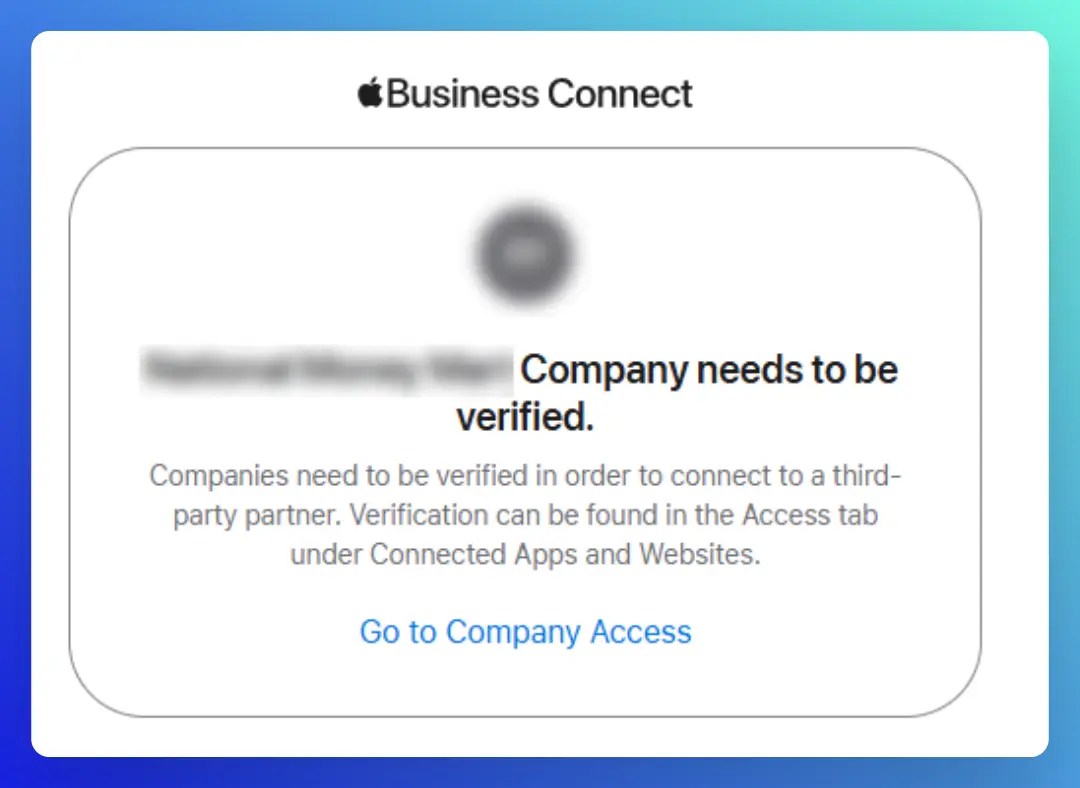
Once you have registered and/or signed in with your ABC account, within a few minutes you should receive an email outlining the necessary verification steps which usually involves submitting business documents and typically takes up to five business days. If confirmation of verification is not received, please check any bulk or spam filters you might have active in the email used to register.
Once verification is completed, your authorization will be approved and your account will be successfully connected to the LocalClarity platform.