
Create a Google Listing directly through LocalClarity's API.
When you make the authorized API connection between Google and LocalClarity, you no longer have to log in to Google to create listings. The same API connection that allows you to make edits to locations directly within LocalClarity also allows you to create local listings from within the platform.
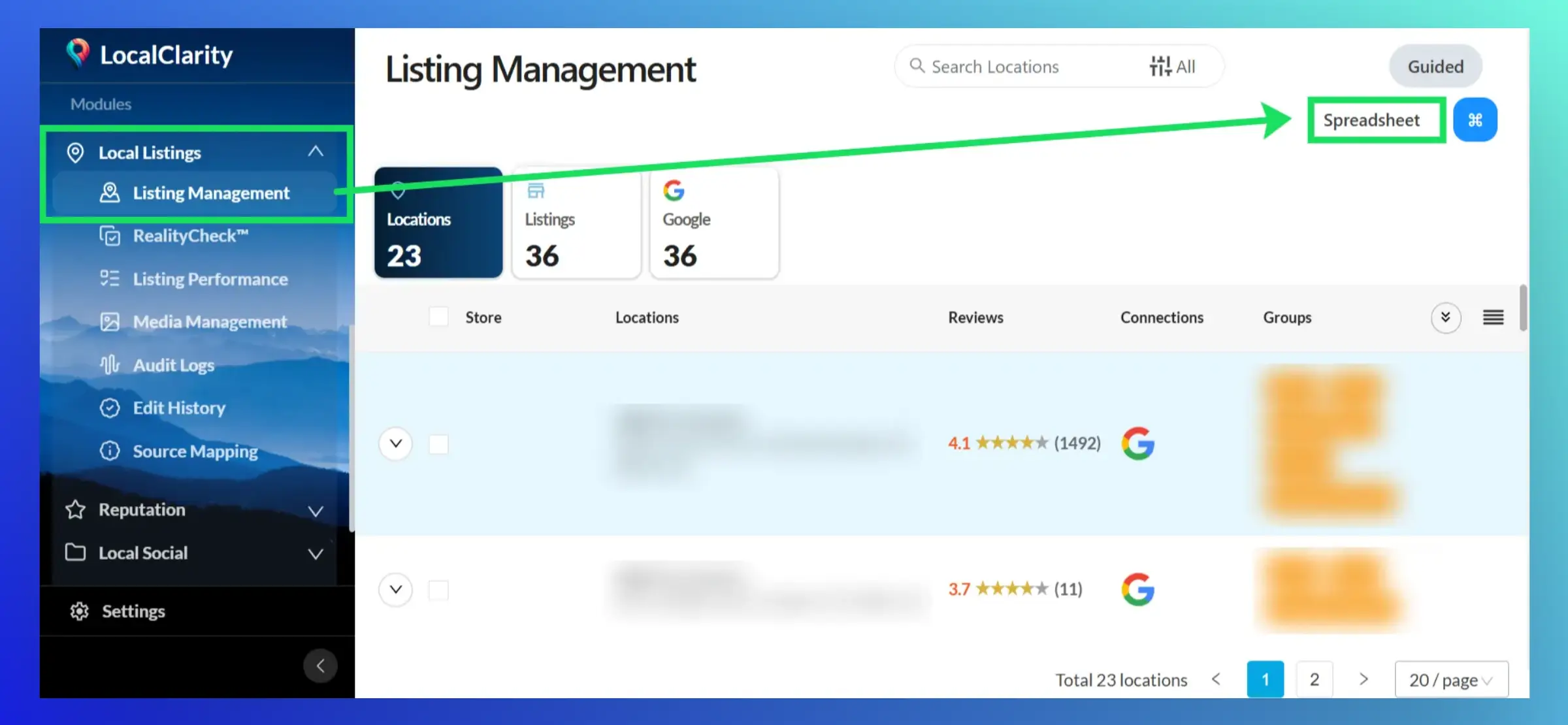
Creating a Google Listing in LocalClarity
Start by going to your Local Listings module and then to the Listings Management page. On this page, click onto the "Spreadsheet " tab on the right side of the page.
On this "Spreadsheet" page, click onto the "Google" tile, then "Create Listings", and then load the page.
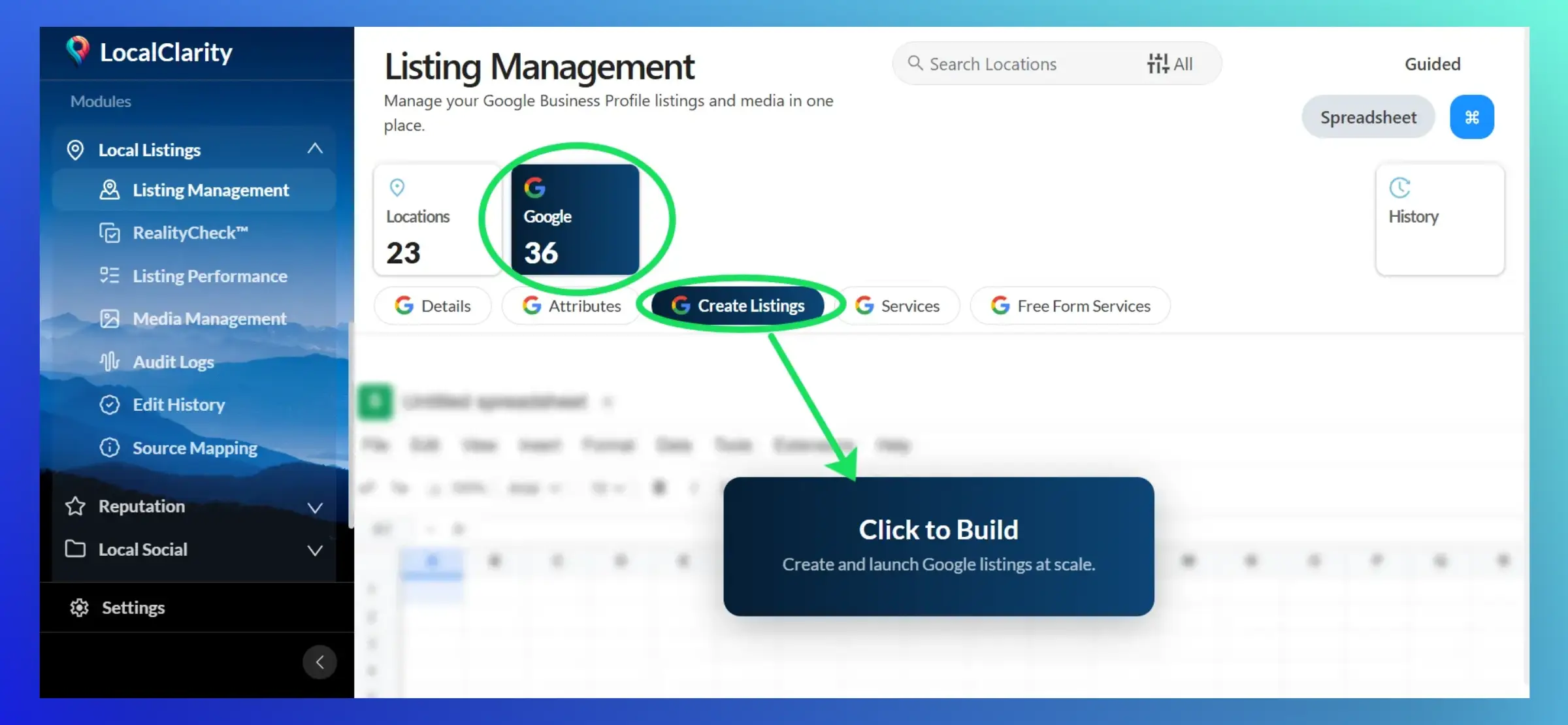
You then will see a Google spreadsheet load on your screen. From there you can fill out the spreadsheet with all of your new store(s) information.
Make sure that all of the mandatory columns highlighted in red are filled out. If you try to update with one or more of those columns missing, these listing creations will fail. Please note that there is a spreadsheet tab at the bottom of the page called, "SAMPLE_SHEET" which provides an outline for which data points to include and how to format their details.

Once you've added the complete details for your new location(s), click the "Update" button in the top right. You can view the progress of the listings creation in the history tab.

You have now successfully created a GBP location directly from the LocalClarity platform!
After creating the listing, know that you may need to access your Google Business Profile to verify the listing even if you are bulk verified.


