
Verify GBP listing using various verification options provided by Google.
Ensuring your Google Business Profile (GBP) listings are verified is crucial for guaranteeing that your business information appears correctly on Google services like Search and Maps. Thankfully, LocalClarity provides indications for when you Google listings are not verified.
An unverified listing is highlighted in the Locations module Google view in the right hand corner through the display of the red shield icon. The red computer monitor icon to the right indicates that the listing is also unpublished, which often coincides with the unverified status. To help resolve these instances, below is a step-by-step guide to verifying a Google listing.
.webp)
Step 1: Ensure Ownership
If you already have claimed your business, proceed to Step 2. If you do not yet have ownership of your listing(s), follow the steps outlined here. You can see if your Google listing(s) are claimed by checking if the option to “Claim this business” is displayed.
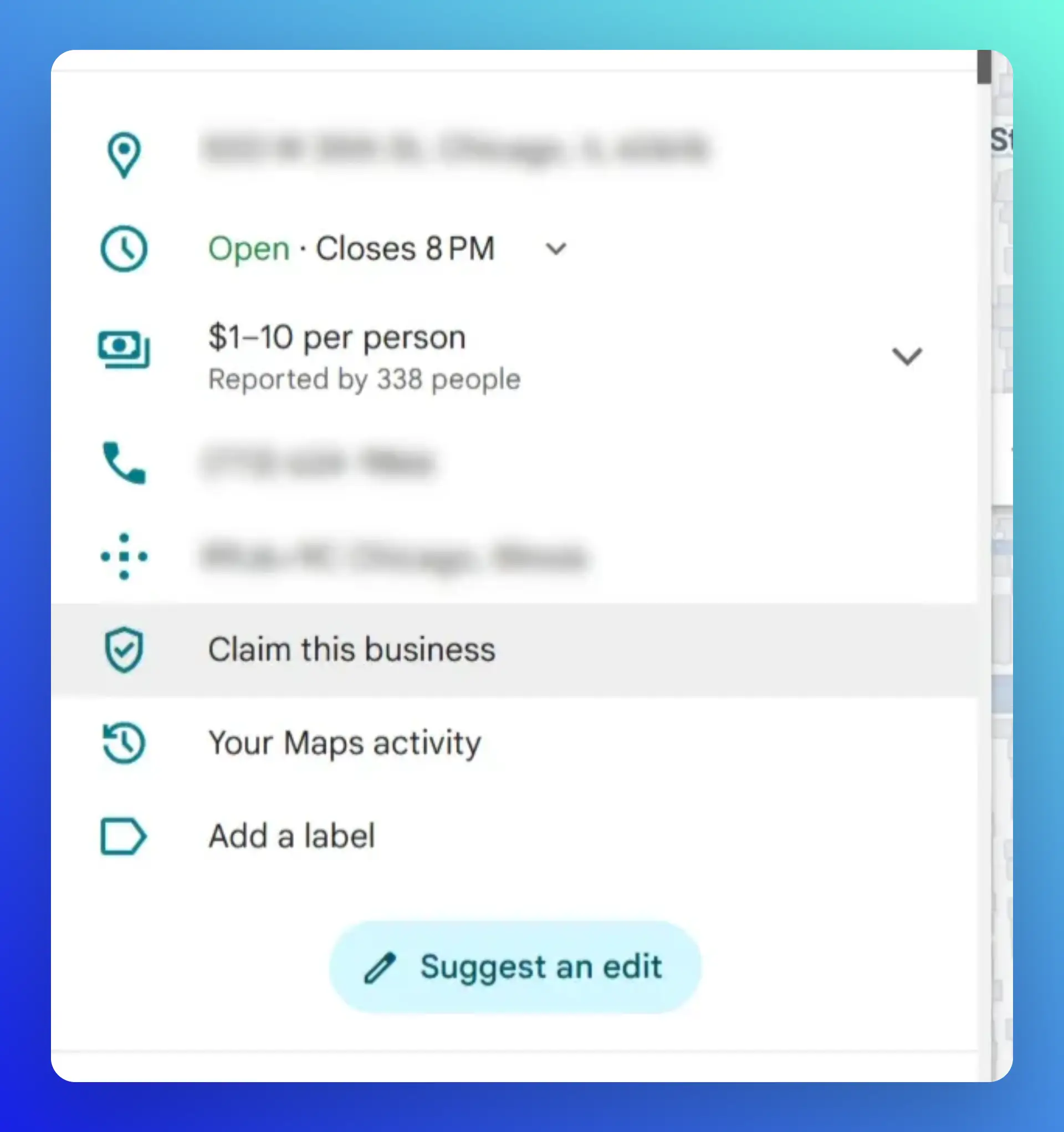
When navigating this process, make sure you are signed in to the Google Account associated with your business. If your business is not listed, you may need to add it yourself. When doing this, you must ensure that your business address adheres to Google’s guidelines for accuracy.
Step 2: Verify Your Listing(s)
Verification methods are determined by Google and may vary based on your business type, public information, region, and or business hours. You’ll see the options available to you within your Google Business Profile under the "Verify" steps.
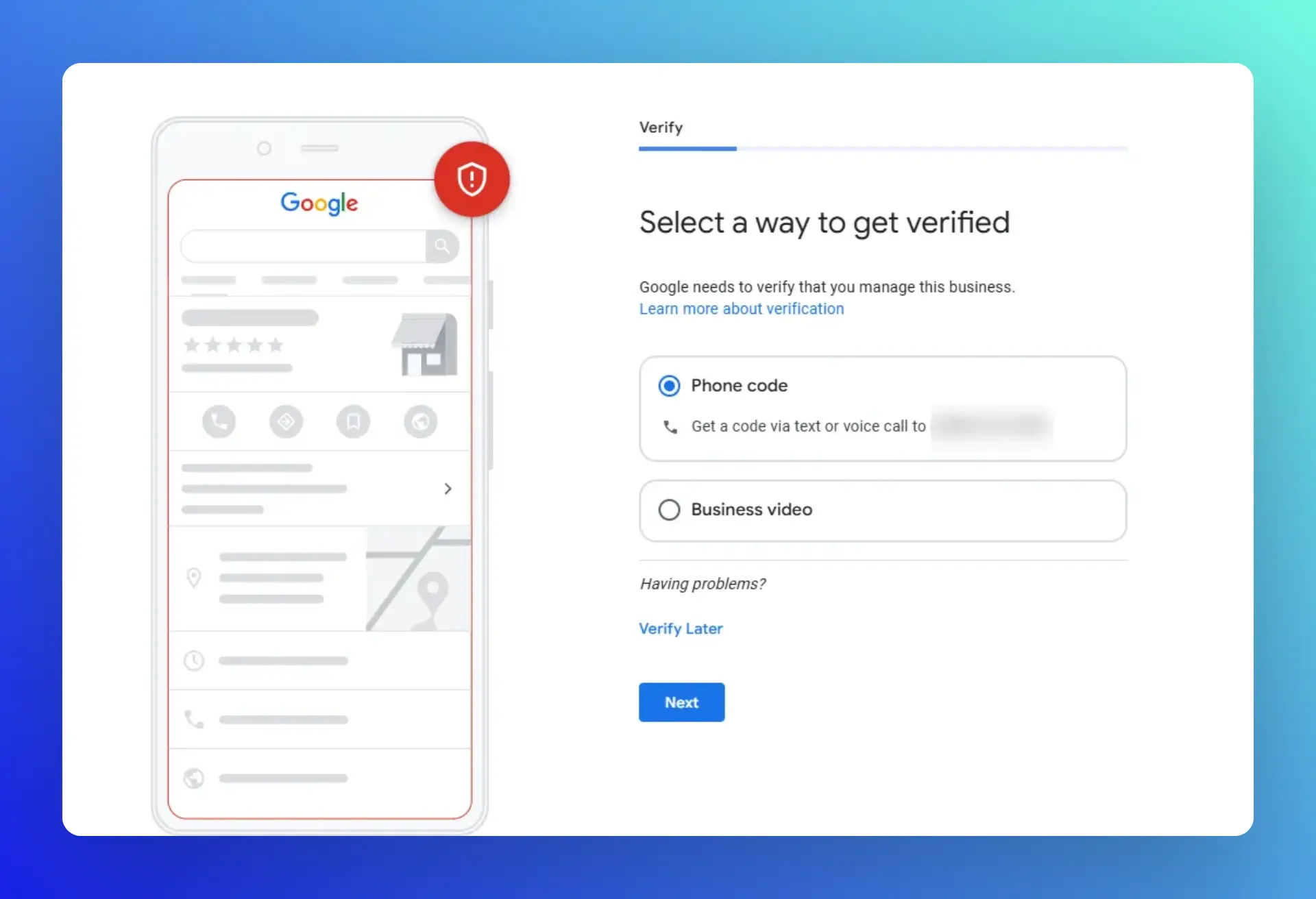
Verification by Video Recording
If you are deemed eligible, you can submit a video that showcases and verifies your business's location and operations:
- Create a Video: Capture a video highlighting your aspects of your business including, but not limited to, location, existing signage/permanent fixtures, and proof of your management of the business. This video must be unedited with no breaks and last for at least 30 seconds. Note that this video cannot contain other people’s face and sensitive or private information.
- Submit the Video: Follow the instructions in your Google Business Profile to upload the video for verification. It will need to be uploaded from a mobile device to your Business Profile.
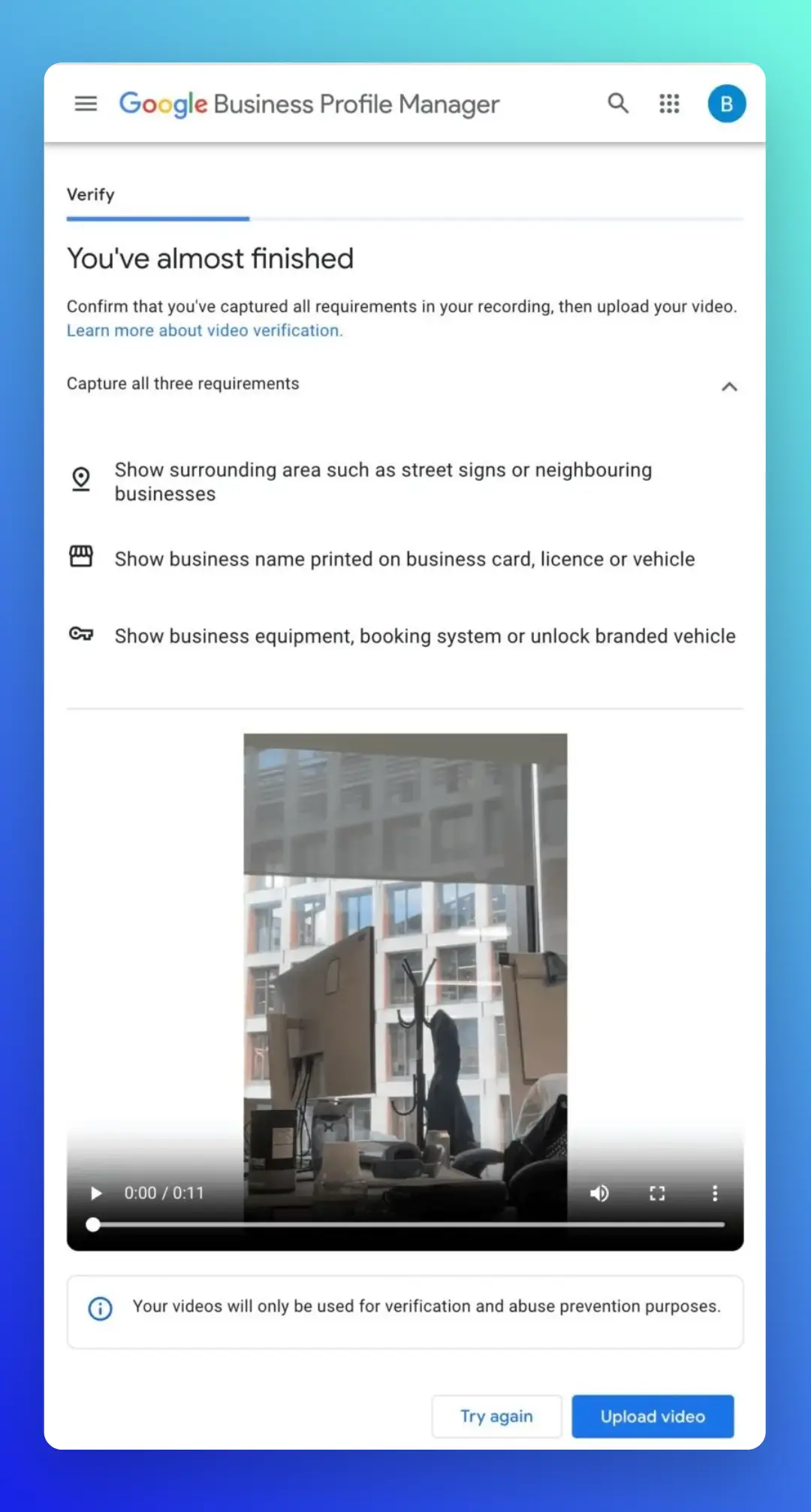
Verification by Phone or Text
Some businesses can receive a verification code via phone. Please note that this is distinct from the Live Video Call option:
- Access Your Business Profile: Select “Get verified” and choose “Phone code”.
- Receive the Code: Answer the call or check the text message for your verification code.
- Enter the Code: Input the code into your profile to complete verification.
Verification by Email
Verify your business through email if this option is available:
- Access Your Business Profile: Select “Get verified” and then “Email.”
- Receive and Enter the Code: Follow the instructions in the email to complete verification.
Verification by Live Video Call
Note that live video calls are an option for some businesses. Additionally, they are only available during the business hours of your location:
- Preparation: Ensure you have a device that supports live video calls and be ready to show your business location and proof of ownership.
- Start the Call: Go to your Business Profile, select “Get verified,” then “Live video call,” and follow the prompts to start a call.
- Show Your Business: Use the camera to demonstrate your business location, operations, and any other required elements during the call.
Verification by Mail
If available to your business, you can choose to receive a postcard with a verification code:
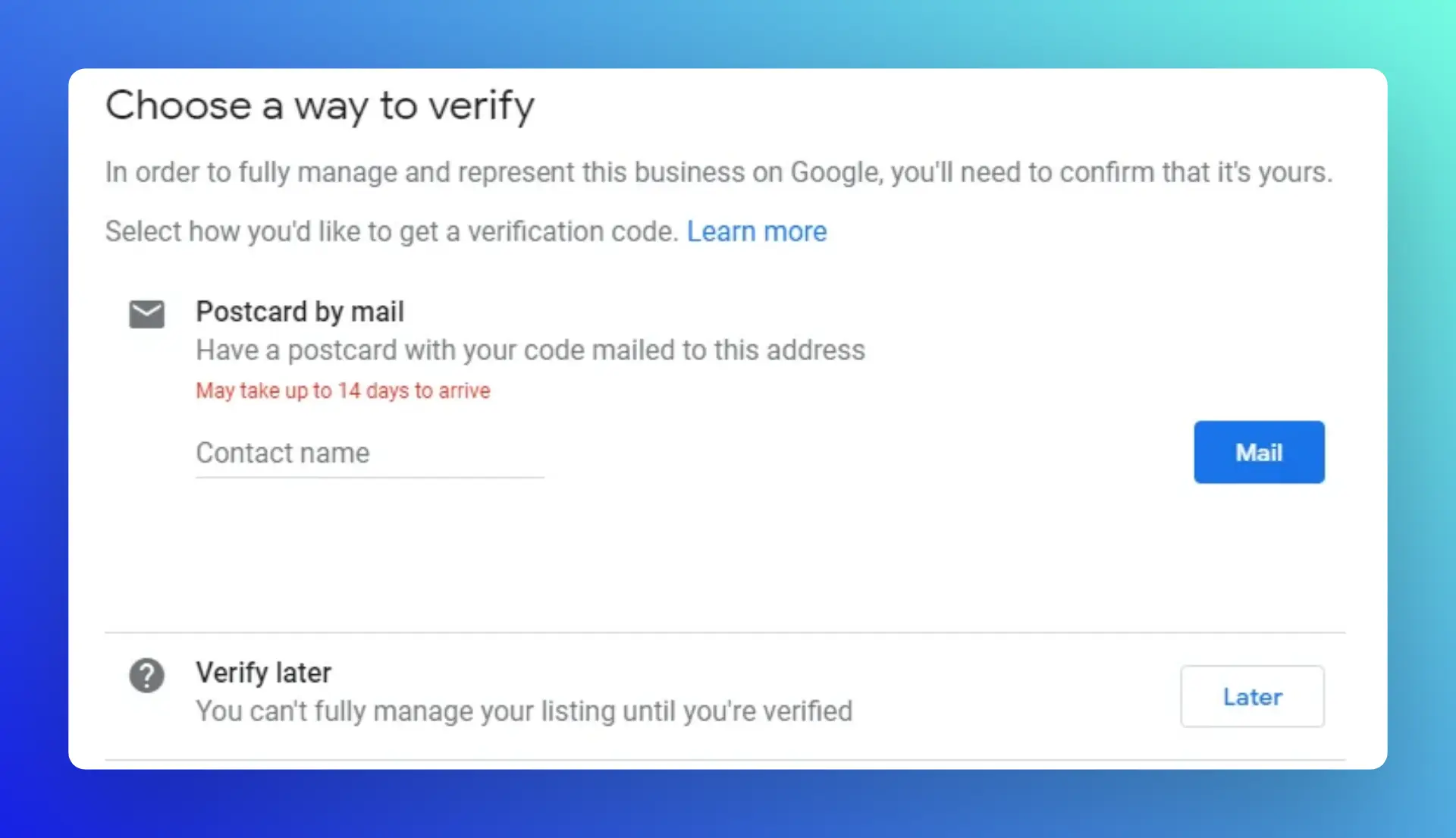
- Request the Postcard: Ensure your business address is correct, then request a verification code.
- Wait for the Postcard: It typically arrives within 14 days. Do not edit your business details during this time.
- Enter the Code: Once you receive the postcard, enter the 5-digit code on your Business Profile.
Step 3: Wait for Verification Approval
After completing the verification steps, Google will review the information provided. This process can take up to five business days, but some profiles may be verified instantly if you’ve used Google Search Console or bulk verification.
Note that bulk verification is available only for businesses with 10 or more locations. This process allows them to bypass standard verification process once their account has been approved for this process.
Step 4: Confirmation and Management
Once your verification is accepted, you’ll receive a confirmation email. If you work with third parties, you can add them to your profile as managers or transfer ownership as needed.
By following these steps, you can ensure your business information and listings are verified and accurately represented across Google services, enhancing your visibility and credibility with potential customers.


