
LocalClarity's Google Listing Health Score scores Google listing elements to highlight missing data and to optimize
Managing multiple Google listings for a bsiness can be challenging. It can be difficult at a glance to discern what is missing from any given listing when managing directly within Google Business Profile. Google does offer a health score system, but it is skewed toward purchasing their various suites, making completeness or a fully healthy listing paywalled.
The Google Listing Health Score within LocalClarity simplifies profile optimization by delivering a transparent visual summary of each location's status. By highlighting missing, incomplete, or underperforming information, businesses can quickly perform targeted updates, ensuring potential customers always see accurate and high-performing profile details.
How to View Listing Health Scores
Follow these steps to access and review the Listing Health Score for a single location:
- Navigate to the Listing Management module in your LocalClarity profile.
- Click the Google view button in the upper left section to open a filtered Google Business Profile listing detail view.
- To the left of each listing is a drop-down button with the option to open the specific listing record. This displays the full breakdown of how the Listing Health Score is calculated for that location.
Understanding Score Breakdown Categories
Optimized Elements (Green or Yellow Tags)
- Items marked in green represent fields that are fully populated or have achieved a score exceeding 90%. These optimized listing details drive strong discovery in local search and encourage engagement with your profile.
- Items marked in yellow indicate that basic information is provided (such as a single photo of your business), but additional details are needed to earn the full score.
Google Listing Elements and Max Scores:
- Phone: Max score of 10
- Website: Max score of 10
- Hours: Max score of 10
- Description: Max score of 4
- Lat/Long: Max score of 2
- Attributes: Max score of 6
- Social: Max score of 3
- Suggested Edits: Max score of 0
- Additional Categories: Max score of 8
- Posts: Max score of 2
- Posts (90 Days): Max score of 2
- Avg Rating: Max score of 10
- Services: Max score of 4
- Images: Max score of 7
- Images (90 Days): Max score of 2
- Reviews: Max score of 8
- Reviews (30 Days): Max score of 2
- Response Ratio: Max score of 7.5
- Response Time: Max score of 2.5
Optimization Opportunities (Red Tags)
Anything marked in red is missing from your listing and scores a zero toward the individual listing health score.
- Quick Wins: Adding missing basic information, such as a contact phone number or website URL.
- Strategic Improvements: Addressing broader performance metrics that require a competitive strategy, such as raising an average review rating that falls below 4.0 stars.
Note: If you are unsure of where to start, email LocalClarity Support and a client success representative will assist you.
How to Download a Health Score Audit
To compare scores across locations, download the full health score audit. Follow these steps to access and review the Listing Health Score for all active and verified locations:
- Navigate to the Listing Management module in your LocalClarity profile.
- Click the Google view button in the upper left section to open a filtered Google Business Profile listing detail view.
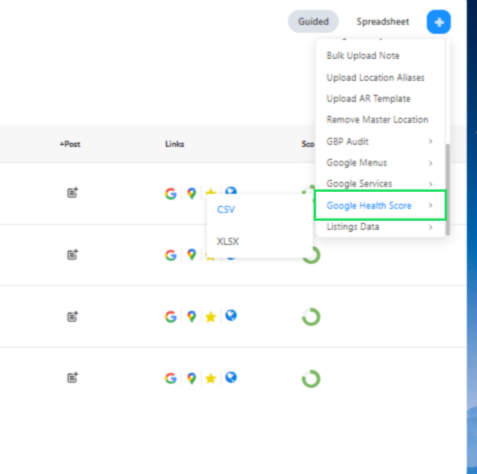
- Go to the Blue Action button in the upper right hand side of the screen, scroll to the bottom until you see the Google Health Score Button
- Select the option to download the full Health Score audit report.
- Depending on the volume of listings, you may be sent a link to your email address associated with your username
Best Practices & Considerations
- Understand Industry-Specific Variations: The Health Score model uses a generalized framework suitable for most business models. Certain categories may not support specific Google features (e.g., Google Services attributes may not apply to every industry).
- Prioritize High-Impact Attributes: Ensure category-crucial attributes are completed—for example, a restaurant profile without a published menu leaves significant visibility on the table.
- Use Scores as a Baseline: Treat the Health Score as a starting foundation. Once your profile achieves a high score, continue expanding your competitive edge with advanced engagement and content playbooks.


