
Track rivals' ratings and reviews with LocalClarity for strategic advantage.
Do you know how your competitors rank in ratings and reviews? Combing through every competitor’s reviews would be impractically is time-consuming, but LocalClarity's solution works seamlessly after the initial set-up.
You'll be able to see your competitors’ total reviews, average review rating, review distribution, response ratio - and even the raw review and response comments. By comparing these numbers to your own ratings and reviews, you’ll be able to see where your business needs to improve — or where you’re already winning.
First, Add the Competitors to Track
Begin by going to the Competitor Reviews page and click Competitor Setup. From here you will create the Competitor bucket for the brand you wish to track (ex. Pizza Hut). Once you add this Competitor bucket, which you can create for a each competitor brand you wish to track, you can then add indexed competitor listings to these buckets.

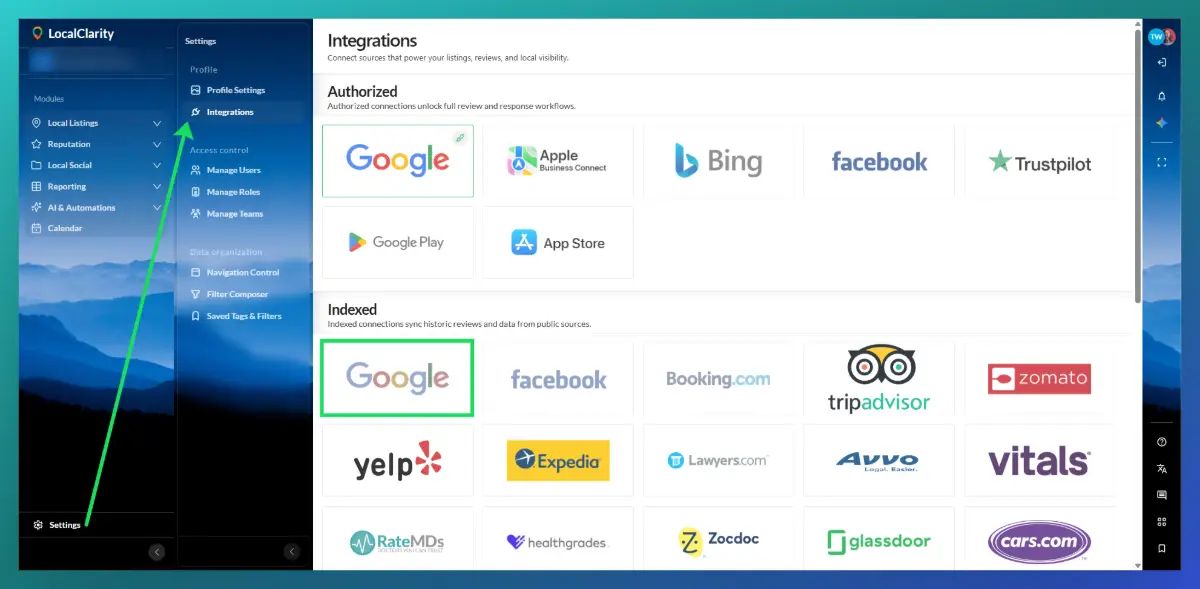
To add these Competitor listings, go to Settings > Integrations > Indexed Review Sources and select whichever source you are wishing to pull from. Most often, you will select Google indexed.

You will need to index the reviews from the Competitor location by entering their PlaceID.
What is a PlaceID? Where can I find it for my Competitors?
A place ID is a textual identifier that uniquely identifies a place. The length of the identifier may vary (there is no maximum length for Place IDs).
Examples:
- ChIJgUbEo8cfqokR5lP9_Wh_DaM
- GhIJQWDl0CIeQUARxks3icF8U8A
- IhoSGAoUChIJ0U6OoscfqokR6P225pApu2UQDQ
When uploading a PlaceID, make sure it is properly formatted before adding. Note that Place IDs may change over time.
Click here to use Googles PlaceID finder.
Back to indexing competitors' reviews
To review: Once in Settings, click Integrations. Then click on any Indexed Integration such as Google.
From here you'll be taken to a page that says, "Enter Location URLs and Competitor Details". On this page, you'll input the placeID for the competutor location you're wanting to add. Once you paste the PlaceID, check the box to reflect that the location is a Competitor and fill out the remaining optional details you wish to add (Competitor Name, Competitor Tag or CompTag, Store Code, and Entity Tag).
When all the information you added looks correct, click the blue "Add" button.

You have successfully added your competitors into LocalClarity!
If I just added them, why aren't they showing in LocalClarity?
Indexing information can take some time, please wait one business day for information to populate. You can also confirming the indexing status on the Indexed integrations page, underneath where you would add new indexed listings.

*Please also validate that the competitor has received a review recently. If there are no reviews then there can be no information to be indexed.


